


Finesse — Manual
Resonance reduction processor with frequency-dependent dynamic control.
Version 1.2.4 · Version history
Background
The history of audio mixing is, in many ways, a history of managing resonance. When the first recording engineers placed microphones in front of orchestras, they immediately confronted the resonant characteristics of concert halls, instruments, and the microphones themselves. Early graphic equalizers were crude tools designed primarily to combat these accumulations of energy at specific frequencies — the boomy room modes, the harsh resonances of ribbon microphones, the cabinet coloration of monitoring systems.
What is a resonance? In its purest form, it's a frequency region where the physical properties of a system cause energy to accumulate and persist. A guitar string resonates at its fundamental frequency and harmonics. A room reinforces certain frequencies based on its dimensions. A filter circuit in a vintage equalizer exhibits Q-factor resonance at its center frequency. These resonances are not defects — they are the very essence of timbre, the fingerprint that allows us to distinguish a violin from a viola, or a vintage Neumann from a modern condenser microphone.
But there exists a threshold beyond which resonance becomes problematic. Excessive resonances create masking — the psychoacoustic phenomenon where energy in one frequency band reduces our ability to perceive detail in adjacent or overlapping bands. When a snare drum's fundamental masks the clarity of a bass guitar, or when sibilance obscures vocal intimacy, the mix loses transparency. This is not merely a technical issue but a perceptual one, rooted in how our auditory system processes overlapping spectral information.
The evolution of mixing tools mirrors our growing sophistication in understanding this balance. In the 1960s and 70s, parametric equalizers offered precise frequency selection and bandwidth control, but their static nature meant compromises: reduce the resonance too much and you lose character; leave too much and you sacrifice clarity. The 1980s brought multiband dynamics processors based on analog crossover networks, yet their frequency resolution was typically limited to just 2–6 bands — broad strokes compared to the hundreds or thousands of frequency regions that modern spectral processing can address simultaneously. Real-time FFT processing, while theoretically possible, remained computationally impractical for professional audio applications.
Modern digital signal processing has enabled a new paradigm: frequency-dependent dynamic control with fine spectral resolution, preserving phase relationships and transient integrity while adapting in real-time to the music's needs.
For masking itself is not always the enemy. In skilled hands, allowing one element to partially mask another creates the front-to-back depth that makes a mix feel three-dimensional. A subtle wash of cymbal overtones can "wrap" a drum kit, making it feel cohesive rather than isolated. Vocal harmonics can create an intimate "veil" that draws the listener closer. The difference between transparency and sterility often lies in these subtle maskings — the ones we choose to preserve.
But the temporal nature of resonance perception adds another layer of complexity. This phenomenon is well-documented in psychoacoustic literature: our auditory system judges problematic resonances not just by amplitude, but by duration — and this threshold varies dramatically across the frequency spectrum. A bass frequency might ring for 300–500 milliseconds before we perceive it as excessive, while a cymbal resonance becomes harsh and fatiguing after just 50–100 milliseconds. This frequency-dependent temporal sensitivity explains why static processing often fails: settings aggressive enough to tame harsh highs will choke the natural sustain of low frequencies, while gentle enough timing to preserve bass body leaves sibilance and metallic overtones intact. The result is the all-too-familiar sound of over-processed material — technically "controlled" but musically lifeless.
The goal, then, is not elimination but intelligent control: preserving the resonances that give music its life while managing those that obscure its message. This requires tools that understand the difference.
The Concept
Finesse is a resonance reduction processor that intelligently manages resonances and spectral content with surgical precision, operating without fixed crossovers and utilizing minimum phase filtering that preserves transients and phase coherence. Unlike traditional dynamic processors that rely on crossover networks, Finesse operates across multiple frequency bands simultaneously through advanced filtering techniques, enabling precise control over tonal and dynamic character while maintaining optimal phase relationships throughout the frequency spectrum. This ensures that the natural attack and dynamic response of the source material remain intact while unwanted resonances are effectively controlled.
At its core, Finesse analyzes spectral content in real-time and applies frequency-dependent processing based on three customizable curves: Depth, Timing, and Guard. This approach enables control over problematic resonances while preserving the natural character and musicality of the source material. The system operates completely independently of input levels, providing true "set & forget" functionality that adapts automatically to any signal.
Controls

Active #
Enables or disables the Finesse processor. When disabled, the signal passes through unprocessed, allowing for quick A/B comparisons.

Depth #
Sets the strength of the resonance reduction across all frequency bands. This main control is bidirectionally linked with the Depth curve — adjusting the slider updates all curve handles proportionally, while modifying individual curve handles updates the slider to reflect their average value. Higher values result in more pronounced spectral shaping and dynamic control.
Tip: Begin with conservative settings (< 5) for transparent resonance control without artifacts.

Bands #
Sets the frequency resolution of the spectral processing. Higher values enable finer control over individual frequency regions, with band centers aligned to musical notes for intuitive adjustment. The 12-bands-per-octave setting provides a good starting point for diverse material.

Timing #
Sets the global response speed of the processor. Lower values create faster, more aggressive processing that catches transients and rapid changes. Higher values result in slower, smoother processing that preserves natural dynamics. Like the Depth control, this slider is bidirectionally linked with the Timing curve, allowing both broad adjustments and frequency-specific fine-tuning.
Tip: Match values to source material — fast settings (50–150 ms) excel at taming harsh cymbal resonances and metallic overtones, while slower values (300–500 ms) effectively control low-frequency buildup.

Guard #
Establishes a protection threshold that prevents over-processing of subtle resonances. Any spectral content below this threshold remains untouched, preserving the natural character of gentle peaks and preventing the "lifeless" sound that can result from excessive processing. The Guard control features the same intelligent bidirectional linking with its corresponding curve.
Note: This function preserves essential character by protecting subtle resonances from reduction. Appropriate threshold settings ensure natural sound quality is maintained while problematic resonances are still effectively controlled.

Output #
A simple gain control for compensating any level changes introduced by the processing. Use this to match the processed and bypassed signal levels for accurate comparisons.
Channel Processing
Finesse offers flexible channel-processing modes to suit different mixing and mastering scenarios.

L/R Mode #
Processes the left and right channels, optionally linking them. The LINK control (0–100%) determines how much the channels influence each other — at 0%, each channel is processed completely independently, while at 100%, both channels receive identical processing based on their combined analysis.

M/S Mode #
Processes the mid (center) and side (stereo) components separately. The WEIGHT control (–100% to +100%) adjusts the balance between mid and side processing. Positive values emphasize mid processing for controlling centered content, while negative values focus on the side channel for stereo width control.
The Curve System

Finesse's unique curve system provides intuitive visual control over frequency-dependent processing. Each curve type can be selected using its corresponding button, and all curves are displayed and edited directly on the spectrum analyzer.

Handle Value #
Shows and controls the value of the selected drag handle.
This field displays the current value of the selected handle and allows direct numeric input. The displayed value automatically updates when you drag handles in the spectrum display and is bidirectionally linked to the master sliders when changed here.
Note: Only visible when a single handle is selected.

Handle Frequency #
Shows and controls the frequency of the selected drag handle.
This field displays the current frequency of the selected handle and allows direct numeric input. The displayed value automatically updates when you drag handles in the spectrum display.
Note: Only visible when a single handle is selected.

Depth Curve #
Shapes how strongly each frequency region is processed. Create gentle overall corrections or target specific problem frequencies with surgical precision.

Timing Curve #
Adjusts the response speed across the frequency spectrum. Set faster times for controlling harsh high-frequency transients while maintaining slower, more musical processing in the low end.

Guard Curve #
Defines a frequency-dependent protection threshold across the spectrum. Resonances whose magnitude falls at or below the curve are excluded from processing, preserving their natural character. Raise the threshold in regions with important musical content to protect them more strongly, while leaving lower thresholds elsewhere to keep problematic resonances under control.
Curve Editing

The spectrum display serves as both a real-time analyzer and an interactive curve editor:
- Click and drag any handle to adjust its frequency and value
- Double-click to add new points at specific frequencies
- Double-click on a handle to remove it
- Left-click and drag to create a selection rectangle around multiple handles for grouped adjustments
- Hold Shift and drag horizontally to lock the value
- Hold Alt and drag vertically to lock the frequency
- Hold Ctrl and click to select or deselect multiple handles
- With Auto Curve Selection on, hover to highlight the nearest curve and click to select it, or grab a handle to select and drag its curve in one motion; toggle it in the context menu
- Hold the right mouse button over the display to Listen — audition a sweepable band of the input, its width set by the mouse wheel (also bindable to a key)
- While auditioning, left-click to drop a matching notch on the Depth curve — four points spanning the band with its edges anchored open and the inner pair pre-selected, so a single drag sets the notch depth
Each curve maintains between 2 and 8 (in case of Depth, 12) active points, automatically interpolating smooth transitions between them.
Bidirectional Link
The bidirectional connection between sliders and curves employs an intelligent priority system to prevent feedback loops and ensure smooth operation:
When you adjust the main slider (Depth, Timing, or Guard), the corresponding curve handles update proportionally while maintaining their relative positions. Conversely, when you modify individual curve handles, the main slider automatically reflects the average of all active points.
This system uses a priority mechanism that gives precedence to the most recent user action. Whether adjusting via the plugin GUI or through DAW automation, Finesse ensures that intended changes are applied without conflicts or unwanted feedback. For automation purposes, it is recommended to use the main sliders (Depth, Timing, Guard) rather than individual curve points. Hold Shift while dragging the master slider to activate multiplicative scaling mode, preserving the relative proportions of curve points. (When dragging individual curve handles, Shift instead locks the frequency — see Curve Editing.)
Note: If you would like to automate individual curve points, make sure you're not automating them together with the corresponding main slider.
ReTilt System
The ReTilt feature provides automatic spectral balance and loudness compensation.
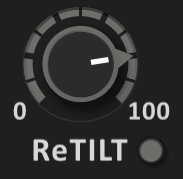
ReTilt #
Enables intelligent tilt correction that monitors the spectral changes introduced by Finesse and applies an inverse tilt to maintain the original tonal balance and perceived loudness.

ReTilt Amount #
Controls the strength of the tilt compensation. Lower values apply subtle correction, while higher values more aggressively maintain the original spectral balance and loudness characteristics. 50% is a solid always-on setting; values toward 100% make the algorithm work more aggressively.
Note: Only active when ReTilt is enabled.
Immersive & Surround
Finesse processes any channel layout from mono up to 9.1.6. Each symmetric channel pair — the front L and R, the side and rear surrounds, the height (ceiling) channels — is handled together and inherits the L/R or M/S mode you have selected. The LFE channel is treated as its own set as well; like the other sets it passes through untouched until you switch it on. Surround and immersive layouts are supported in the VST3, AU and AAX versions.
By default only the front L/R pair is processed. Additional channel sets are switched on individually, so a surround mix stays predictable and CPU is spent only where you actually want resonance suppression. All per-channel controls and meters live in the Channels panel, opened from the toolbar.
Note: The Channels button only appears in the toolbar when the plugin is on a surround bus (more than two channels). On mono or stereo it stays hidden, and if the host narrows the bus back to stereo the panel closes on its own. It also stays hidden while the sidechain is on, since a four-channel sidechain bus is used as stereo plus sidechain rather than an immersive layout.

The Channels panel groups the layout into channel sets — LR, C (centre), LFE, Surr (surround) and Ceil (ceiling). Each set present in the current layout shows a real-time reduction meter per channel, plus its own controls:
- On — enables processing for the set. When off, the set passes through unprocessed and stops using CPU.
- Depth Scaling (D) — scales how strongly the set's resonances are suppressed relative to the main Depth: 100% = full processing, 0% = none.
- Solo (S) — mutes all other sets so you hear only this set's channels.
- Link (L) — ties the channels within a multi-channel set (Surr, Ceil) together per frequency band so they share one reduction, from 0% (independent) to 100% (fully linked).
- View — the eye button lays a set's channels onto the main spectrum display as curves, shaded per channel, so you can see exactly what each channel is doing.
The ALL toggle in the panel header switches every set on at once, or back to L/R only. A MAX / 90% button sets the meter statistic — MAX shows the strongest band, 90% the 90th-percentile band for a calmer, more representative reading.
Note: In surround layouts only L and R are processed until you switch on more sets — either one at a time or with the ALL toggle.
Control Behavior

- Reset to default — Double-click directly on the control.
- Edit by text entry — Click the displayed text value, type a new value, then press Enter.
Toolbar


Undo / Redo #
Use the undo/redo buttons to recall previous/next parameter changes. The exact event is shown in a tool tip.
Note: certain parameter changes are not tracked by this function (e.g. "Bypass").
Preset Management

The preset drop-down list offers quick access to factory settings and user presets.

The next/previous buttons allow you to cycle through the presets. The mouse wheel over the preset box does the same, one preset per notch.

Advanced preset management options are available from the context menu (Right-click). Where an option needs a name or a confirmation, it asks inside the plugin window.
- Reset to Original State — resets the currently active preset to its original state.
- Save As New Global User Preset… — asks for a name and creates a User Preset. These persist across sessions and DAWs (saved on your machine). Total user presets are limited to 20.
- Overwrite/Rename Selected User Preset… — overwrite or rename presets.
- Delete Selected User Preset — delete the current user preset.
- Save As Default State — replaces the plugin's default preset with the current parameter state.
- Revert Default State To Factory Setting — deletes an overwritten default state.
- Copy State (Ctrl+C) — copies the current control states to the clipboard. Apply across instances and hosts using Paste State.
- Paste State (Ctrl+V) — pastes the control states from the clipboard.


A/B Control #
A and B are two parameter states to switch between. They start linked: every change writes to both, so B holds whatever A holds until you separate them — and the first press on B is what separates them. A keeps your edits, B falls back to the state a freshly loaded instance has. That is the comparison the pair exists for: what you built against what the plugin does untouched.
Between them sits a single copy arrow, and it always points the way the copy goes: while A is active it copies A into B, while B is active it turns round and copies B into A.
Right-click A or B for Reset A to Initial State or Reset B to Initial State. It puts that one slot back where a fresh instance starts, without switching to it, so you can clear the slot you are not listening to. Undo takes it back.
That starting point follows your own saved default state, not the factory one — “untouched” means a fresh instance as you have set it up. Once the two are separated, B is an ordinary second state and behaves like A.

Help #
The dynamic help mode offers detailed information about the various elements of the user interface. Click "?" to activate the online help and move the mouse cursor over the control of interest. A small info bubble will appear displaying the function and details of the item. Help mode can also be switched on from Settings → Help → Help on the interface; a bubble at the "?" button then confirms it for a few seconds. Click "?" again to leave help mode.

Channels #
Opens and closes the Channels panel for surround and immersive layouts: per-set controls and meters, described under Immersive & Surround.
Note: This button only appears in surround setups. It shows when the plugin sits on a bus with more than two channels, and stays hidden on mono or stereo and while the sidechain is on.

Sidechain #
Toggles external sidechain input on or off.
When active, Finesse analyzes the external sidechain input instead of the main input to control processing. The processing is still applied to the main input. This lets you shape one signal based on the frequency content of another signal.

Delta Mode #
Toggles Delta Mode on or off. When active, outputs only the difference between the original and processed signals, letting you hear exactly what Finesse adds or removes from your audio.
Note: Delta Mode does not include the effects of ReTilt and Output Gain.

Theme #
Opens the color theme selector. Choose from different visual themes to customize the plugin's appearance. Each theme offers a unique color scheme for interface elements and curves.
The selected theme is automatically synchronized across all open instances of the plugin and saved with your preferences.

Settings
The settings button opens a dialog which gives control over additional plugin options. Its pages come in three groups: Controls, Interface, Processing and Compatibility; Updates, Registration and Local data; Help, About, What's new and Credits.

- Controls — how knobs and control points respond to the mouse.
- Continuous drag — when Velocity is enabled, knob and controller movement relies on mouse speed. When Linear is enabled, knob and controller movement is proportional to mouse movement.
- Drag sensitivity — a slider from 1% to 200% that scales how far a control moves for a given mouse movement. Double-click it to return to 100%.
- Mouse configuration — Left-click & drag (Continuous) and Right-click & drag (Stepped, snapping to values) by default. Swap continuous / stepped buttons swaps the two mouse buttons. Mouse wheel steps to snap values makes the mouse wheel turn in snap steps; holding Ctrl while turning gives the other mode. Mouse wheel clicks buttons (off by default) lets a turn of the wheel over any button act as a click on it, in either direction; pause briefly before the next one. Inside the settings and shortcuts panels the wheel scrolls as usual. These settings apply to all Ohlhorst Digital plugins.
- Interface
- Refresh rate — how often the meters and analysis displays redraw: Auto, 60, 90, 120 or 144 Hz. It changes nothing about what is measured. Auto follows the monitor the plugin window is on, up to 240 Hz on monitors that run that fast. The setting is shared by all OD plugins; windows that are already open pick it up the next time they are opened.
- VSync — on by default. Ties every redraw to the screen's refresh: the smoothest motion, and never faster than the screen, so a rate above the screen's is capped at the screen's.
- UI scale — sets the size of the plugin window, up to the largest size that fits your screen (at most 200%). The smallest size depends on the display: 75% on a standard display, down to 50% on high-resolution ones. Double-click the value to type an exact one. You can also drag the bottom-right corner of the plugin window — there is no visible handle, the cursor changes when you are over it. Only your own choice is saved: opened on a smaller screen, the plugin is drawn smaller there and the saved scale stays as it was.
- Quick scale presets — the sizes the context menu offers, 100%, 125% and 150% by default.
- Processing — Status shows the plugin's latency and the sample rate.
- Messages — Show a banner when the plugin latency changes: a short note with the new latency in samples whenever it changes. Off by default; the setting is shared by all OD plugins.
- Compatibility — Hold left click for context menu: Auto, On or Off, Auto by default. Some hosts don't pass a right click on to the plugin — DaVinci Resolve is one. With this setting on, holding the left mouse button still for half a second opens the menu a right click would open at that spot, such as the context menu or the preset options. It does not act on knobs (a press there starts a drag), in the curve display, where holding and dragging already mean something, or on toolbar buttons, which act as soon as they are pressed. While it is on, the preset list opens when you release the mouse button. Auto switches it on in DaVinci Resolve only; the panel shows whether it is on in the host you are using. The setting applies to all Ohlhorst Digital plugins and is never saved with a preset or project; other OD plugins pick up a change the next time their window opens.
- Updates — under Latest version, Check now looks for a newer version, and Download appears with its version number when there is one. Automatic check looks once per day.
- Registration — shows who the plugin is Registered to, with the offline and online registration options. With Register all OD products ticked, the online sign-in also installs the keys of every other Ohlhorst Digital plugin your account owns; each of them is registered the next time your DAW loads it. Deregistering asks for confirmation.
- Local data — Data folder opens the folder where your preferences, presets and keys are stored, Export saves them as a zip file (keys optional), and Import restores such a file, replacing what is there. These operations affect all TDR plugins.
- Help — Online: this manual, Support — bug reports, installation, licences and other questions; the support form opens with plugin, version, format, OS and DAW filled in — and the newsletter. In the plugin: the keyboard shortcuts, and help on the interface — point at any control to see what it does.
- About — version, format, build, authors and copyright, and the trademark notice of the plugin format in use.
- What's new — the changes in the installed version, taken from the plugin's changelog. The tab only appears when the changelog has an entry for that version. Earlier releases are listed in the version history.
- Credits — what the plugin is built with, and the testers who evaluated it.
Context Menu

Additional options can be accessed using the standard context menu. This is opened by Right-clicking on a blank area anywhere in the UI. A click outside of the menu closes it.
- Auto Curve Selection — when enabled, hovering the display highlights the curve nearest the cursor and a single click selects it for editing. Off by default; your choice is remembered.
- Shortcuts… — opens the keyboard shortcuts configuration dialog.
- UI scale — switches to one of the quick scale presets from the settings dialog (100%, 125% and 150% by default). A preset your screen cannot fit is left out, and the greyed line Larger scales do not fit this screen says so.
- Copy state (Ctrl+C) — copies the current control states to the clipboard.
- Paste state (Ctrl+V) — pastes the control states from the clipboard.
- Save screenshot to desktop — captures the current plugin window and saves it as a PNG to your desktop.
Shortcuts

Finesse supports configurable keyboard shortcuts for quick parameter access. Open the shortcuts dialog via right-click → Shortcuts… anywhere on the plugin interface.
Keyboard shortcuts require the plugin to have keyboard focus. Click anywhere on the plugin interface to grab focus. When "Mouse Focus" is enabled (default), shortcuts are only active while the mouse cursor is over the plugin window — they deactivate automatically when the mouse leaves the UI, preventing accidental triggering from other windows.
- Enable — Enables or disables all keyboard shortcuts globally.
- Show Focus — A coloured border appears around the plugin when shortcuts are active.
- Mouse Focus — Shortcuts are only active while the mouse cursor is over the plugin window.
All shortcuts are fully rebindable. Each shortcut has its own enable checkbox. To reassign, click on the key slot in the dialog and press the desired key. You can also assign Shift or Alt on its own to any slot, or hold Ctrl or Alt while pressing a key to bind a combination such as Ctrl+B. Right-click a slot to reset to default or clear. Conflicts are resolved automatically — assigning a key already in use will clear the previous assignment.
Default shortcuts:
- Active (toggle):
E - Delta (toggle):
D - Depth (− / +):
Q/W - Timing (− / +):
A/S - Guard (− / +):
Y/X - ReTilt (− / +):
R/T - Bands (− / +):
F/G - Output (− / +):
V/B
Step keys increment or decrement the parameter using snap values for stepped control.
Note: Keyboard shortcut availability depends on the host application. Some DAWs may intercept certain key events before they reach the plugin.
Adaptive Load
Finesse continuously monitors the incoming signal and its internal state — filter memory and the like — and releases processing resources whenever they are not needed.
On a track that only plays during part of an arrangement, Finesse detects the silence and bypasses its filters and processing entirely, dropping to almost 0% CPU within a few milliseconds. Processing resumes the moment audio returns, with no change to the sound or to your settings.
In practice: more instances per project, and shorter export times.
Acknowledgements
Finesse was conceived and developed by Jan Ohlhorst.
Original documentation by Shane Johnson.
Software evaluation by:
Ady Connor, Aleksi Vuolevi, Andrew Boult, Bob Olhsson, Castle Mastering, Clément Bastiat | Storm Mastering, Cyril Meysson, Dan Suter | echochamber, Dan Worrall, Dax Liniere | Puzzle Factory, Dean, Dennis J Wilkins | Studio 12 Below, Diogo C. Borges, Eden Puder | Why Giacomo, Eric Recourt, EvilDragon, Ezequiel Morfi | Titanio Studios, Greg Reierson, Gregg Janman | Hermetech Mastering, Helmut Erler | mastering.heyrec.org, Ilya Orlov, Janne Hatula, Jean Dante, Jeffrey Rippe, Jerry Anthony Mateo, Joe Caithness Mastering, Joseph Lyons, Juan Carlos Sotelo | Campo Estéreo, Justin Perkins, Karl Mohr | Multibeat, Kosher Butcher Studios, Laurent Sevestre, Marco Vincis | Tera Mastering, Mark den Hartog | Zownd, Michael Wynne, Miro Pajic, Murray Campbell | Beatworld, Niklas Silen, Nil Hartman Mastering, Pete Grandison, Resoundsound Mastering, Rich Prewett, Richard Pentrose, Robi Bulesic, Roger Baltensperger | flameworks, Roland Löhlbach, Ronny Pries, Ruairi O'Flaherty, Sean Diggins, Sergey Makeev, Thaddeus Moore | Liquid Mastering, Uri Grzenda | Titanio Studios, Valentin Viktorovich | Zvukofor Sound Labs, Vitaly Zolotarev.
VST is a registered trademark of Steinberg Media Technologies GmbH.